

Font Encoder App for Code 128 barcodes
A Windows application that encodes your data and applies the barcode font, from a simple window or the command line.
What it does
Paste finished barcodes into rich text fields or batch-create many from a file.
- Graphical window and command-line modes
- Batch-generates barcodes from an imported text file
- Saves and loads settings as XML
- Runs on Windows XP and later, including Windows 10
- Source code available with developer licenses
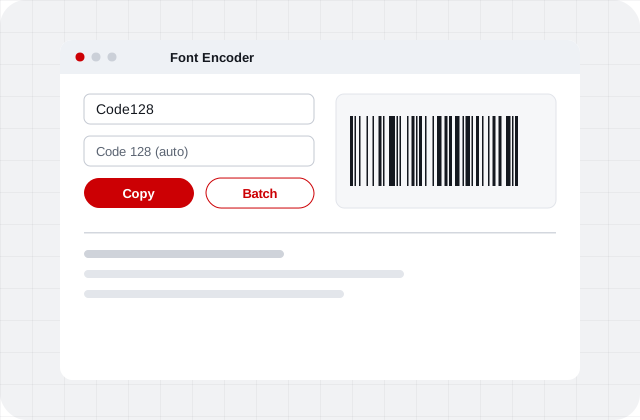
Six steps to your first barcode
Summarized from IDAutomation’s Font Encoder App page (opens in a new tab).
- Install and openInstall the barcode font package and open the Font Encoder App.
- Enter dataType or paste the data to encode.
- Adjust optionsSet options such as Apply Tilde, font height and point size.
- Copy the barcodeCopy the barcode to the clipboard, or enable auto copy.
- PastePaste it into your target application.
- Apply the fontIf only text appears, select it and apply the barcode font.
Frequently asked questions
What is the Font Encoder App?
A Windows program that encodes data and applies IDAutomation barcode fonts, either through a graphical interface or from the command line. It detects installed barcode fonts, their heights and symbology options.
Can it create many barcodes at once?
Yes. Use the batch option with a data file, or run it from the command line with CSV, TXT, SCSV or TSV input and CSV, SCSV or TSV output. 2D batch output is XML only.
Which barcode types does it support?
Linear symbologies including Code 128, ITF, DataBar, UPC/EAN and GS1-128, 2D symbologies including Data Matrix and QR Code, and Intelligent Mail.
Which license includes it?
Many font packages include the app at no extra cost, including the Code 128, ITF, DataBar, Universal, Data Matrix and QR Code packages. Packages without it include the Excel Font Encoder App, which also works on Mac.
Encode without writing code
Order the font and start generating barcodes in minutes.