

Excel barcode font encoder for Code 128
A VBA font encoder that generates 1D linear barcodes directly in Excel cells with the Universal Barcode Font.
What you get
The encoder is provided with the font packages and covers Code 128, ITF, UPC, EAN and Code 39.
- VBA encoder compatible with Excel on Windows 2010 and later and Excel on Mac 2016 and later
- Works with local installations of Office 365
- Barcodes display inside the cells of the spreadsheet
- Example workbook with the VBA already embedded
- Included with every IDAutomation license
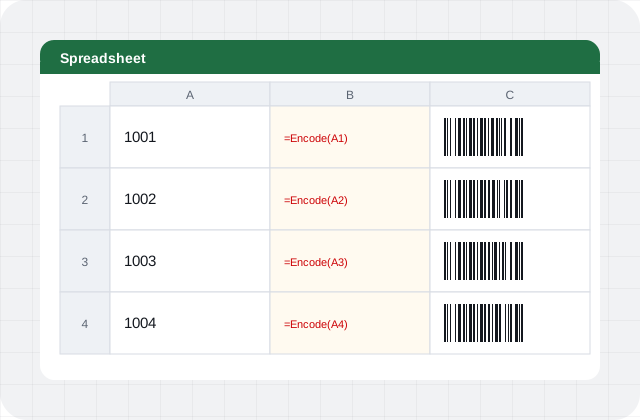
Seven steps to a barcode in Excel
Summarized from IDAutomation’s Excel 1D barcode VBA font encoder tutorial (opens in a new tab).
- Get the filesDownload and extract the zip. On Windows, run the setup application to install the barcode font. On Mac, extract the files and open the Excel Example in the Integration folder.
- Enable macrosOpen the Excel Example and choose Enable Content, which the VBA macros require.
- Test itChange the data and scan the barcode with a barcode scanner or decoder app.
- Choose an approachModify the Excel Example, since the VBA is already embedded, or enable the Developer tab in an existing spreadsheet and import the VBA file from the Integration folder.
- Enter the formulaCreate a formula in a cell that generates the text to be encoded.
- Apply the fontSet the cell to the barcode font, choose a point size, and make the cell large enough for white space around the symbol.
- SaveSave as an Excel Macro-Enabled Workbook (XLSM).
Frequently asked questions
Which versions of Excel work?
The VBA font encoder works with Excel on Windows 2010 and later, Excel on Mac 2016 and later, and local installations of Office 365.
Does it support 2D barcodes?
This encoder is for 1D linear barcodes such as Code 128, ITF, UPC, EAN and Code 39. QR Code, Data Matrix and PDF417 use the separate Excel 2D Font Encoder.
Why do I need to enable macros?
The encoder is written in VBA, so macros must be enabled. Save the workbook as a macro-enabled XLSM file.
Can I fill a column of barcodes?
Yes. Copy the barcode cell and paste it into a selection so the formula adjusts for each row.
Barcodes in your spreadsheets
Order the font and use the Excel encoder right away.